Bloomberg Terminal Basics
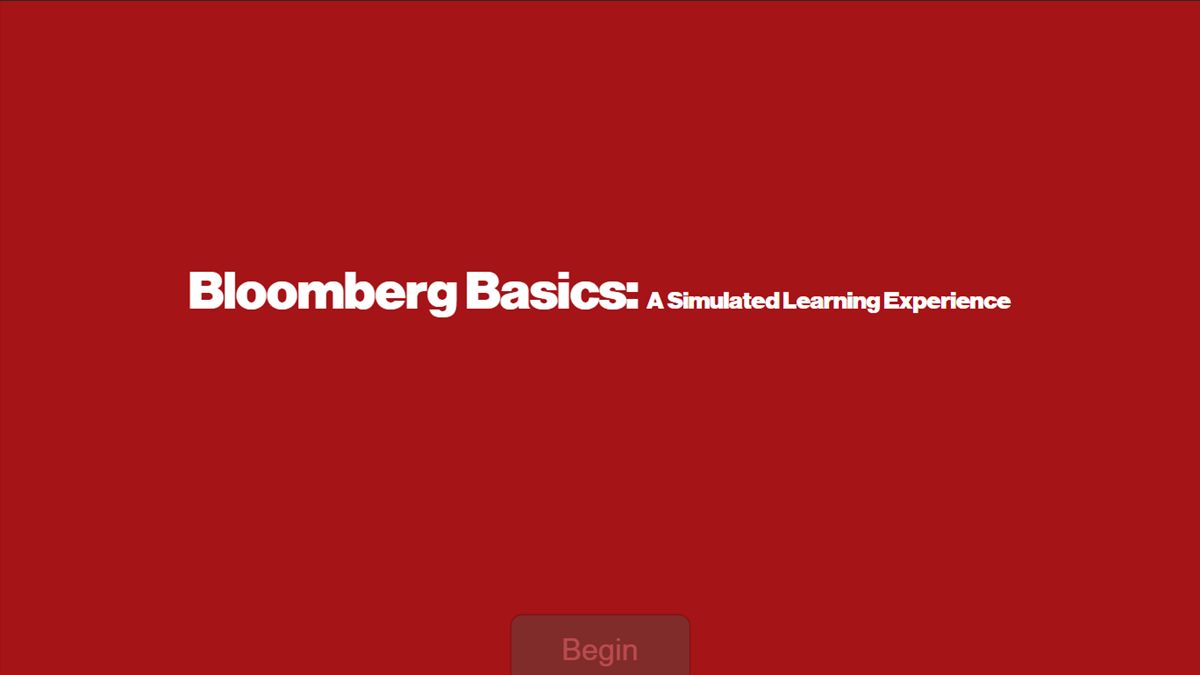
A self-paced, risk-free simulation that teaches new users to navigate the Bloomberg Terminal. It replaces 30-minute one-on-one walkthroughs for a university business library serving ~2,800 students.
- Audience
- Business students and other new users of 8 library terminals
- My role
- Team lead (analysis); sole designer & developer of the Storyline build
- Tools
- Storyline 360, Miro, Camtasia, Adobe Stock
- Timeline
- Spring–Summer 2024 · Graduate project for a real client need
The problem
The Bloomberg Terminal is powerful but intimidating. It has dense screens, keyboard-driven commands, and hundreds of functions. At the business library, staff had to walk each new user through it one-on-one, at about 30 minutes per person, across 8 terminals and a population of ~2,800 students.
That approach didn't scale. Every learner also got a slightly different walkthrough, and nobody could practice without tying up a live terminal.
The solution
A simulated eLearning module that mirrors the terminal so learners can practice core functions safely, at their own pace, with instant feedback:
- Watch, try, do. Guided demonstrations, then hands-on practice, then scenario-based challenges.
- Instant feedback loops that correct mistakes in the moment instead of at the end.
- Assessment points placed at key moments to check proficiency, not memorization.
- Consistent training for every learner, available anytime, without staff time.
Inside the simulation
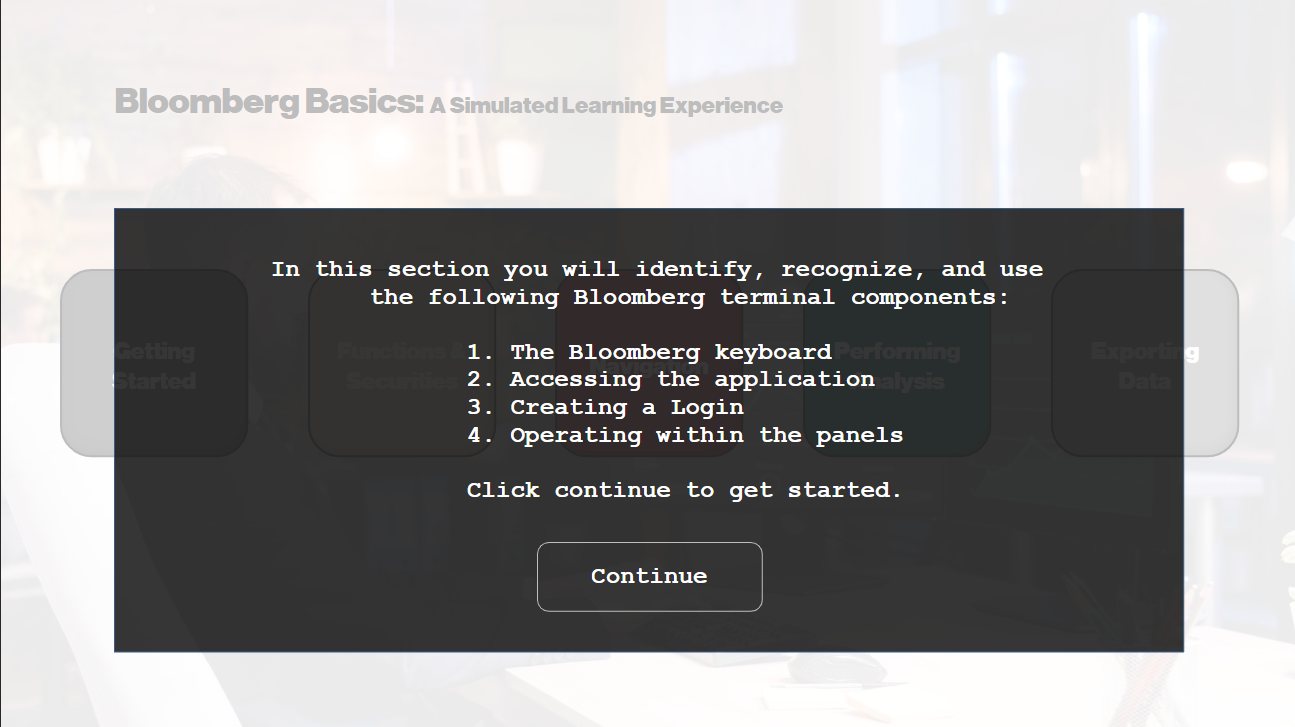
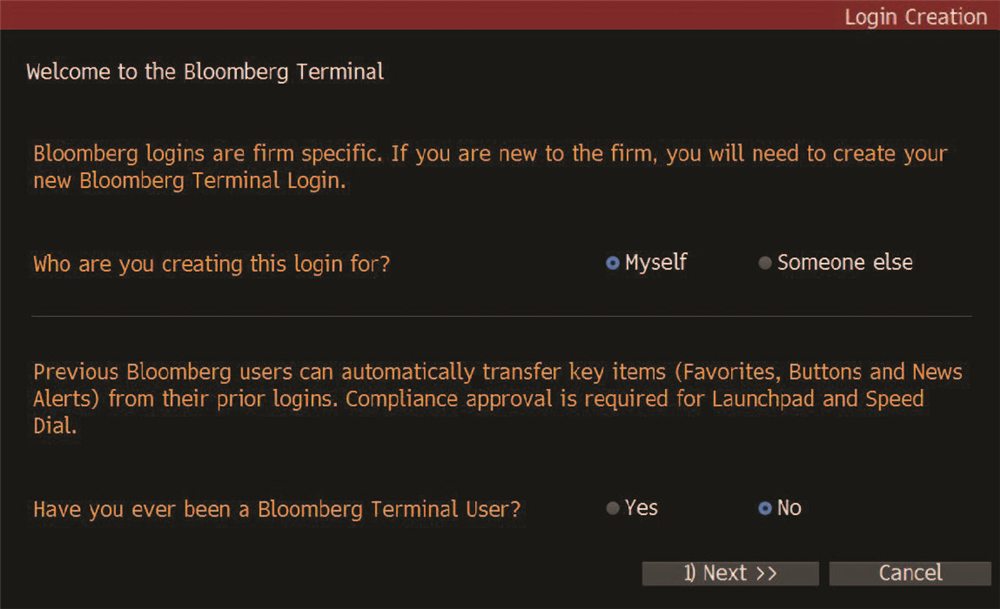
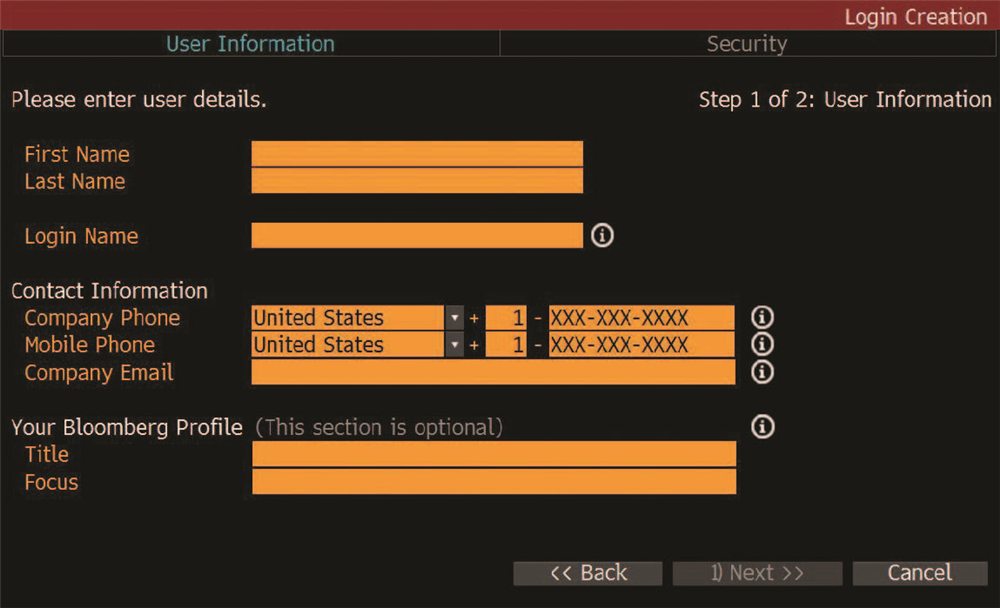
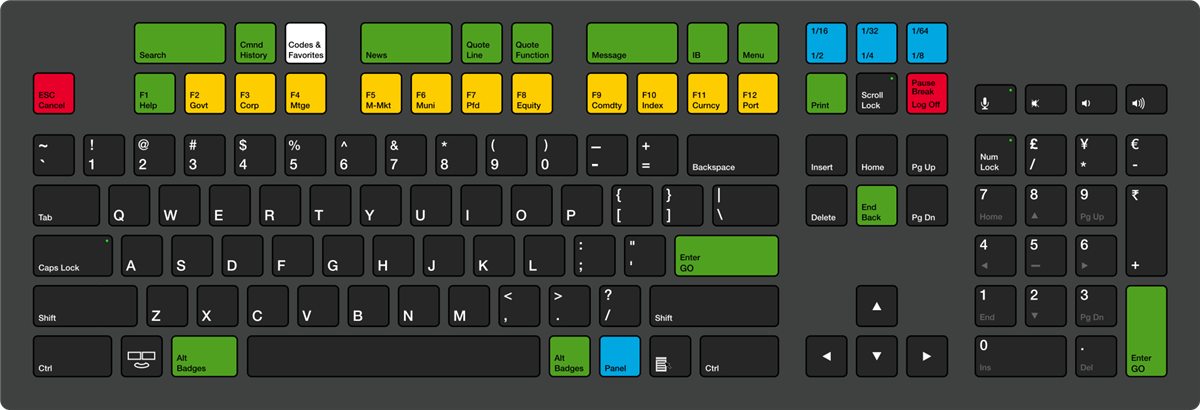
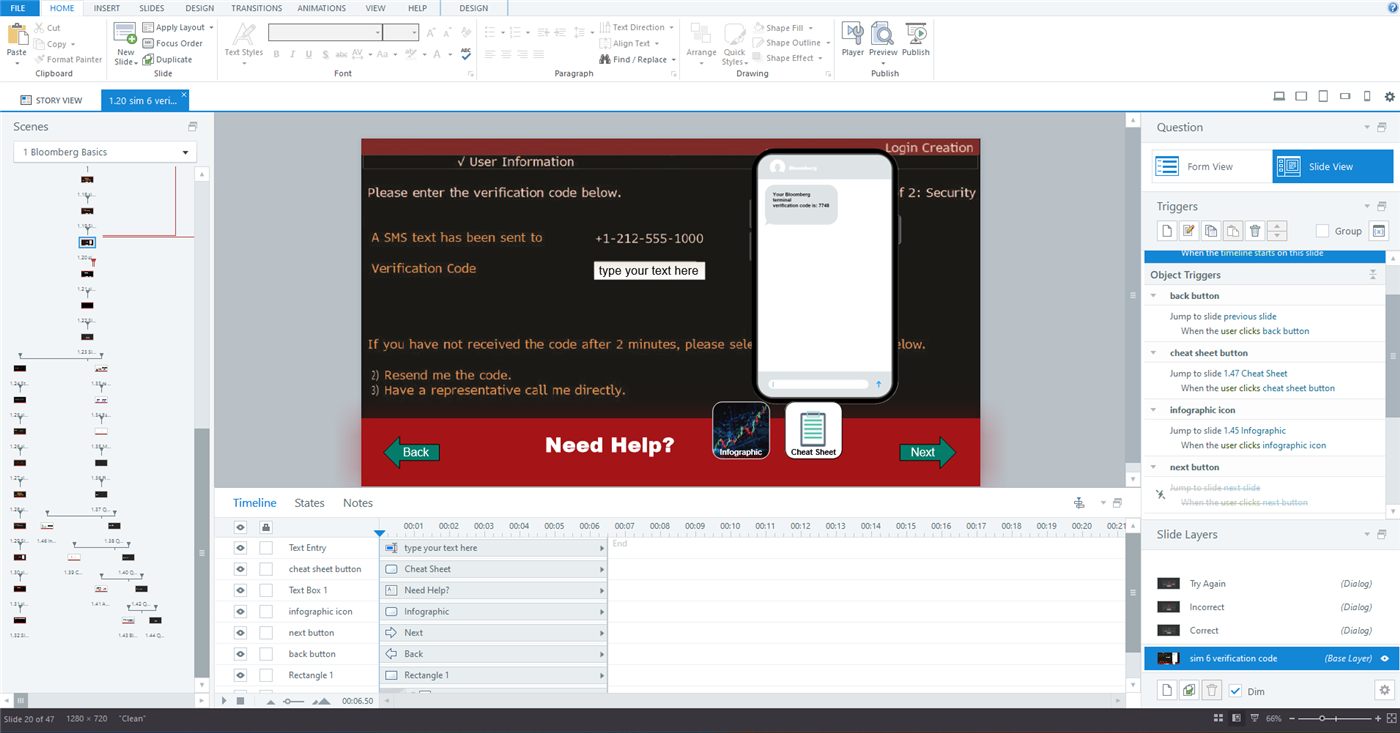
Learners take the role of an analyst trainee on their first day. They create a terminal login step by step, learn the color-coded keyboard, and then practice core functions. Each screen recreates the real interface, so the clicks and keystrokes carry over to the actual terminal.
My process
- Needs analysisI surveyed learners about their background, technical comfort, and familiarity with financial tools to build a learner profile.
- Task analysis with SMEsI interviewed library subject-matter experts to list the terminal tasks new users actually perform, then prioritized them by frequency and importance.
- Objectives & sequencingI wrote performance-based objectives (navigate core features, apply functions to realistic research tasks, troubleshoot common issues) and sequenced content from basic to advanced.
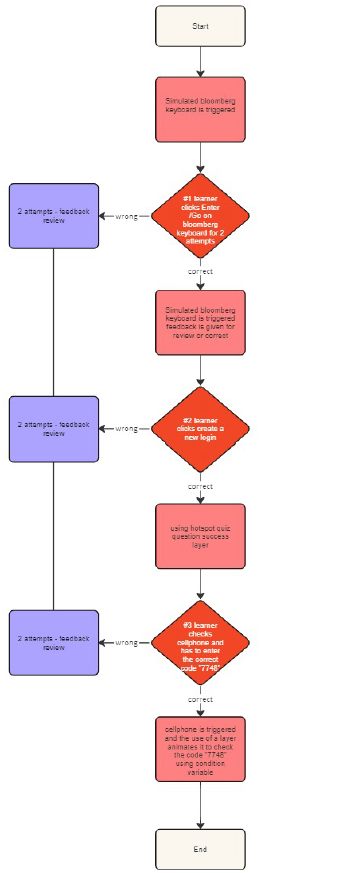
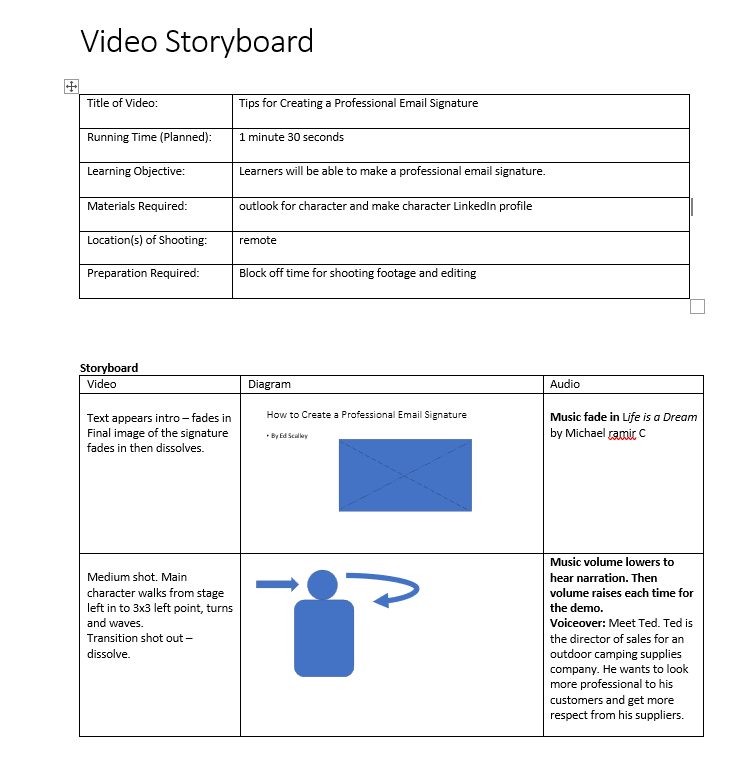
- Flowchart & storyboardI mapped the simulation's branches, assessment points, and feedback loops in Miro, then storyboarded each screen.
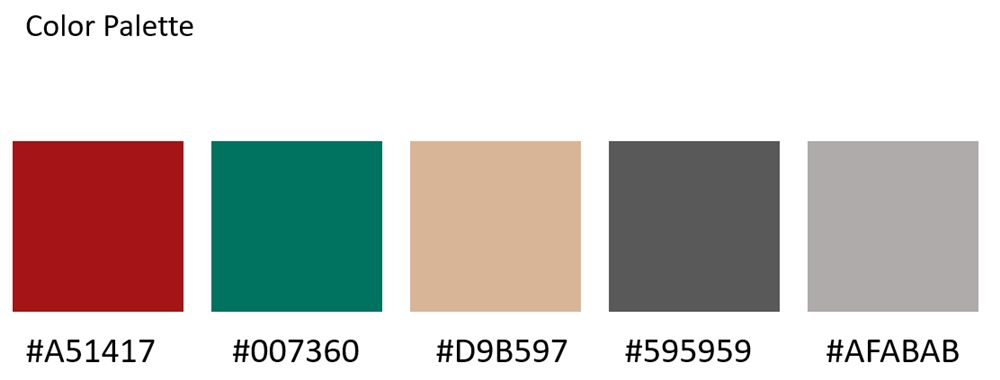
- Visual systemI created a style guide (palette, type, buttons) so the simulation looks like a single tool rather than a slide deck.
- Build & iterateI developed the module in Articulate Storyline 360 with triggers, states, and variables, iterating through 20+ saved versions.
Design decisions
- Simulation over screenshots. Learners need to do the commands, so the core of the module is interactive practice, not reading.
- Mistakes are safe. Errors trigger hints and a retry instead of a fail screen, which lowers anxiety about an expensive, unfamiliar tool.
- A brand-faithful look. I matched the terminal's look (signature red, monospaced "terminal" type) so skills transfer directly to the real screen.
Stakeholder pitch
I recorded and edited a short pitch video in Camtasia to walk stakeholders through the problem, the proposed solution, and the expected benefits.
Outcome & next steps
The result is a working, self-paced simulation that delivers the same core training a staff member used to give one-on-one, so staff time goes to advanced questions instead of basic navigation.
What I'd measure at launch: completion rate, scores at each assessment point, time-to-proficiency compared with live walkthroughs, and staff hours freed per semester.
Why it matters for your team: I'd use the same approach (task analysis with SMEs, then simulated practice with instant feedback) to onboard employees to Salesforce, Workday, ServiceNow, or any complex system they need to use from day one.